Validate TOML & Convert Markdown or TS Online
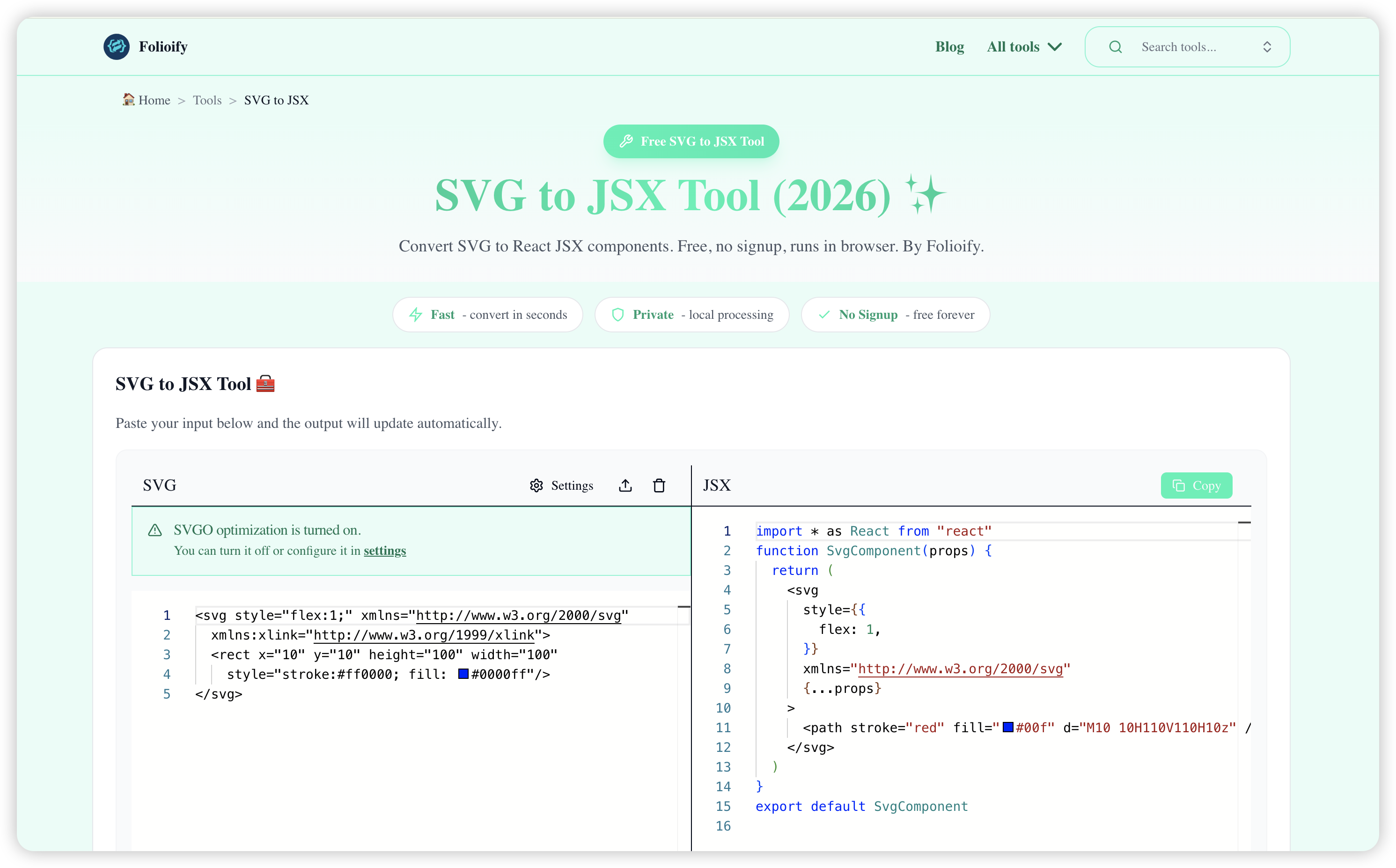 Why do small developer tasks still require a new project, a CLI install, or a full build pipeline? When you only need to check a TOML config snippet, prepare Markdown content for a React page, or share a TypeScript example as plain JavaScript, browser-based tools can remove several minutes of setup.
What you'll learn
- How to validate TOML syntax before config changes break CI
- When to use Markdown to JSX instead of HTML for React pages
- How to transpile TypeScript to JavaScript for docs, demos, and sandboxes
- A practical three-step workflow with free Folioify tools
- When browser-based conversion is—and is not—the right choice
Quick Answer: Use the TOML Validator to catch config syntax errors, the Markdown to JSX Converter to move content into React, and the TypeScript to JavaScript Compiler to transpile snippets for demos, docs, or quick debugging.
This workflow is especially useful for frontend developers, documentation writers, open source maintainers, and teams that frequently move between config files, docs content, and JavaScript examples.
What Is Browser-Based TOML and Code Conversion?
Browser-based developer tools run conversions and validation locally in your tab instead of on a remote server. You paste TOML, Markdown, or TypeScript input, get immediate output, and keep snippets on your device—ideal for quick checks without installing CLIs or spinning up a project.
Why Use Browser-Based Developer Tools?
Local tools are still the right answer for full projects. Your app should rely on versioned dependencies, CI checks, and repository-level formatting rules. But many daily tasks are smaller than that:
- You copied a
pyproject.tomlsection and want to know whether a comma or string is invalid. - You drafted documentation in Markdown and need JSX that can live inside a React component.
- You have a TypeScript snippet but need to paste JavaScript into a README, issue, or sandbox.
For these tasks, online tools are fast because they are focused. You paste input, review the output, and move on. There is no package install, no temporary repo, and no extra editor setup.
Step 1: Check TOML Syntax Before Config Changes Break Builds
TOML is common in Python, Rust, static site generators, and developer tooling. It is readable, but it is also strict. A misplaced quote, duplicate key, or malformed array can stop a build before the actual application code runs.
Example TOML snippet:
[project]
name = "docs-site"
version = "1.4.0"

[tool.build]
targets = ["web", "worker"]
minify = true
The fastest check is to paste the snippet into a TOML validator and confirm that the parser accepts it. Use the TOML Validator when you want to check TOML syntax before committing config changes.
Common TOML issues to watch for:
- Duplicate keys in the same table.
- Arrays with mixed or malformed values.
- Strings that start with one quote style and end with another.
- Table headers that look right but are nested incorrectly.
This is a good first step because config errors are usually cheap to catch and expensive to discover later in CI.
Step 2: Convert Markdown Drafts Into JSX for React Pages
Markdown is still one of the fastest formats for writing docs, changelogs, FAQs, and help content. React apps often need that content as JSX so it can sit beside components, links, badges, callouts, or design-system primitives.
Markdown input:
## Install

Run `npm install` and import the component:

- Works with React
- Supports custom props
- Easy to copy into docs
JSX output should preserve the content structure while making it valid for React:
<>
  <h2>Install</h2>
  <p>
    Run <code>npm install</code> and import the component:
  </p>
  <ul>
    <li>Works with React</li>
    <li>Supports custom props</li>
    <li>Easy to copy into docs</li>
  </ul>
</>
Use the Markdown to JSX Converter when the target is a React page or component. It is a better fit than Markdown to HTML when you need JSX syntax, component-friendly markup, or a quick copy-paste path into a Next.js page.
This is useful for:
- Migrating documentation into React pages.
- Turning release notes into component-ready content.
- Converting small Markdown blocks for landing pages or product docs.
- Checking how lists, headings, code spans, and paragraphs will translate.
Step 3: Compile TypeScript Snippets Into JavaScript for Sharing
TypeScript is excellent for application code, but not every place accepts TypeScript. Some docs, browser consoles, quick sandboxes, issue comments, and older build systems still expect plain JavaScript.
TypeScript input:
type User = {
  id: string;
  active: boolean;
};

const formatUser = (user: User): string => {
  return `${user.id}:${user.active ? "active" : "inactive"}`;
};
JavaScript output:
const formatUser = user => {
  return `${user.id}:${user.active ? "active" : "inactive"}`;
};
Use the TypeScript to JavaScript Compiler when you need to remove type annotations and produce JavaScript quickly.
Remember that transpiling is not the same as type checking. A converter can remove TypeScript syntax and emit JavaScript, but your real project should still run tsc, your framework build, or your CI checks before release.
A Practical Three-Step Workflow
Use this order when you are preparing a small docs, config, or frontend change:
| Task | Tool | Why it helps |
|---|---|---|
| Validate config | TOML validator | Catch syntax problems before CI |
| Prepare docs content | Markdown to JSX converter | Move written content into React |
| Share runnable examples | TypeScript to JavaScript compiler | Make snippets usable in JavaScript-only contexts |
This gives you a lightweight workflow for the tasks that often sit between writing code and publishing docs.
When Not to Use Online Conversion Tools
Browser-based tools are best for focused transformations. They should not replace your repository pipeline.
Avoid using online tools as the only source of truth when:
- The input contains secrets, tokens, credentials, or private customer data.
- You need project-aware type checking across multiple files.
- You need exact formatting rules from your repo.
- You are validating a release build or production deployment.
For those cases, use your local compiler, formatter, linter, and CI system. Online tools work best as a fast preview or cleanup step before the final project-level checks.
Key Takeaways
- Validate TOML first — syntax errors in
pyproject.toml,Cargo.toml, or app config are cheap to catch early and expensive in CI. - Choose JSX for React — use Markdown to JSX when content lands in components; use Markdown to HTML for static pages.
- Transpile ≠ type-check — TypeScript to JavaScript removes types but does not replace
tscor your CI pipeline. - Keep data local when possible — Folioify tools run in the browser; still avoid pasting secrets or production credentials.
- Use a three-step workflow — validate config, convert docs content, then share runnable JavaScript examples.
- Online tools complement CI — they speed up one-off tasks; repositories still need formatters, linters, and release checks.
Related Folioify Tools
- TOML Syntax Checker — validate TOML before you commit config changes
- Markdown to JSX Converter — turn docs drafts into React-ready markup
- TypeScript to JavaScript Compiler — transpile snippets for READMEs and sandboxes
- Markdown to HTML Converter — static HTML when React is not the target
FAQ
Can I validate TOML without installing a CLI?
Yes. A browser-based TOML validator can check syntax for pyproject.toml, Cargo.toml, and app config snippets without requiring a local command line tool.
When should I convert Markdown to JSX instead of HTML?
Use Markdown to JSX when the result will live inside a React component. Use Markdown to HTML when you need static markup for a non-React environment.
Is TypeScript to JavaScript conversion the same as type checking?
No. Transpiling TypeScript removes type syntax and emits JavaScript. Full type checking still belongs in your project compiler, framework build, or CI workflow.
Should I paste private production code into online tools?
No. Avoid pasting secrets, credentials, private customer data, or unreleased proprietary source code into any online tool. Use local tools for sensitive material.